JOINT TRAINING PROGRAM

App Store Insights

Monthly Reporting Training Guide

A step-by-step guide for new reporting representatives on the Adobe App Store monthly reporting workflow — from pulling AppFollow exports through to final PPT delivery. Covers Adobe Express, Firefly, and Premiere.

Presented by

×

What We'll Cover

Sections 01–06
01
Adobe's Fiscal Calendar
02
What You're Building Each Month
03
Phase 1 — Pull AppFollow Exports
04
Phase 2 — Extract Numbers with LLM
05
Phase 3 — Fill in the Data Entry Sheet
06
Phase 4 — Update the Tracker Tabs
Sections 07–11
07
Phase 5 — Update the PPT Deck
08
Quality Checks Before Sending
09
Troubleshooting Common Issues
10
Future Automation Roadmap
11
Monthly Checklist
01

Section 01

Adobe's Fiscal Calendar

Why dates matter · The 4-4-5 week structure

Adobe FY2026 Fiscal Calendar

⚠ Adobe does NOT use calendar months. Every AppFollow export must use these exact fiscal dates — a one-day error produces silently wrong data.
QuarterFiscal MonthStart DateEnd DateWeeksLabel
Q1 FY26Fiscal DecemberNov 29, 2025Dec 26, 20254Dec-25
Q1 FY26Fiscal JanuaryDec 27, 2025Jan 23, 20264Jan-26
Q1 FY26Fiscal FebruaryJan 24, 2026Feb 27, 20265 ⭐Feb26*
Q2 FY26Fiscal MarchFeb 28, 2026Mar 27, 20264Mar-26
Q2 FY26Fiscal AprilMar 28, 2026Apr 24, 20264Apr-26
Q2 FY26Fiscal MayApr 25, 2026May 29, 20265 ⭐May26*
Q3 FY26Fiscal JuneMay 30, 2026Jun 26, 20264Jun-26
Q3 FY26Fiscal JulyJun 27, 2026Jul 24, 20264Jul-26
Q3 FY26Fiscal AugustJul 25, 2026Aug 28, 20265 ⭐Aug26*
Q4 FY26Fiscal SeptemberAug 29, 2026Sep 25, 20264Sep-26
Q4 FY26Fiscal OctoberSep 26, 2026Oct 23, 20264Oct-26
Q4 FY26Fiscal NovemberOct 24, 2026Nov 27, 20264Nov-26

⭐ 5-week months produce naturally higher volume metrics — always flag in the PPT narrative. End dates are inclusive in AppFollow.

02

Section 02

What You're Building Each Month

Two deliverables · One master workflow · Metrics produced

The Monthly Deliverables & Workflow

📊 Master Tracker — DE_C_AppStore_[App].xlsx
📥 Data Entry ← THE ONLY SHEET YOU TYPE INTO
AX New — Historical data store + charts
Sentiment MM — Sentiment history + charts
QBR — Reply effect history + charts
📑 Monthly PPT — [App]_AppStore_[Month]_Insights.pptx
KPIs · Charts · Narratives (one file per app per fiscal month)
Covers 3 apps: Adobe Express (iOS + Android) · Adobe Firefly (iOS + Android) · Adobe Premiere (iOS only)

Monthly Workflow

📥 AppFollow — Export 3 files per platform
Reviews Feed · Star Rating · Reply Effect (exact fiscal dates every time)
🤖 LLM (Copilot / Gemini) — Extract all numbers
Upload 3 files + paste prompt from Data Entry Step 4
📝 Data Entry Sheet — Paste values into yellow cells
Step 2A Android → Step 2B iOS → Step 3 PPT deltas
📊 Tracker Tabs — AX New → Sentiment MM → QBR
Transfer values + shift chart ranges forward each month
📑 PPT Deck — KPI numbers + charts + narratives
Update slide 4 (Android) and slide 10 (iOS)
✅ Quality Checks → Send
Run full checklist before sending to client

Metrics Produced Per Platform

MetricSourceTracker Tab
Lifetime (cumulative) avg star ratingAppFollow Rating analysis screen — note manuallyAX New col B / R
Monthly avg star rating (all ratings)Star Rating export → Total row AvgAX New col C / S
Ratings received by star (incl. no-text)Star Rating export → Total row per-starAX New col D–I / T–Y
Avg review rating (text reviews)Reviews Feed → LLM extractsAX New col J / Z
Reviews by starReviews Feed → LLM extractsAX New col K–P / AA–AF
Sentiment % and countsReviews Feed → LLM extractsSentiment MM
Replied by star + totalsReviews Feed → LLM extractsAX New col AH–AM / AN–AS
ASR team replied by star + totalsReviews Feed → LLM extractsAX New col AT–AY / AZ–BE
Reply Effect (with/without replies)Reply Effect exportQBR rows 62–80+
PPT KPI values + m/m deltasData Entry → computedPPT slides 4 & 10
📌 Android columns run B–AY. iOS mirrors the same structure starting at column R through BE.
03

Section 03

Phase 1 — Pull the AppFollow Exports

Three export types · Exact fiscal dates every time

Phase 1 — Three Exports Required

① Reviews Feed
📁 Manage Reviews → Reviews feed

Every review submitted during the fiscal period: star rating, review text, developer reply, reply author, and sentiment classification.

This single file powers review ratings, sentiment, reply rate, and ASR team breakdown via the LLM in Phase 2.

📝 Reviews 😊 Sentiment 💬 Reply rate 👥 ASR
② Star Rating
📁 Monitor Dashboards → Rating analysis

Count of new ratings by star level (5★–1★) and average rating for the period.

iOS → Incremental tab  |  GPlay → Console data tab

📌 Lifetime rating is NOT in the export — note it manually from AppFollow screen.
⭐ Monthly avg 📊 Per-star count
③ Reply Effect
📁 Reviews analysis → Reviews distribution

Average star rating change in reviews edited after receiving a developer reply. AppFollow's proprietary metric.

⚠ If n < 20 updated reviews, always note sample size in the PPT narrative.
📈 QBR charts
⚠ AppFollow always defaults to calendar dates. You must override the date filter to exact fiscal dates every single time.

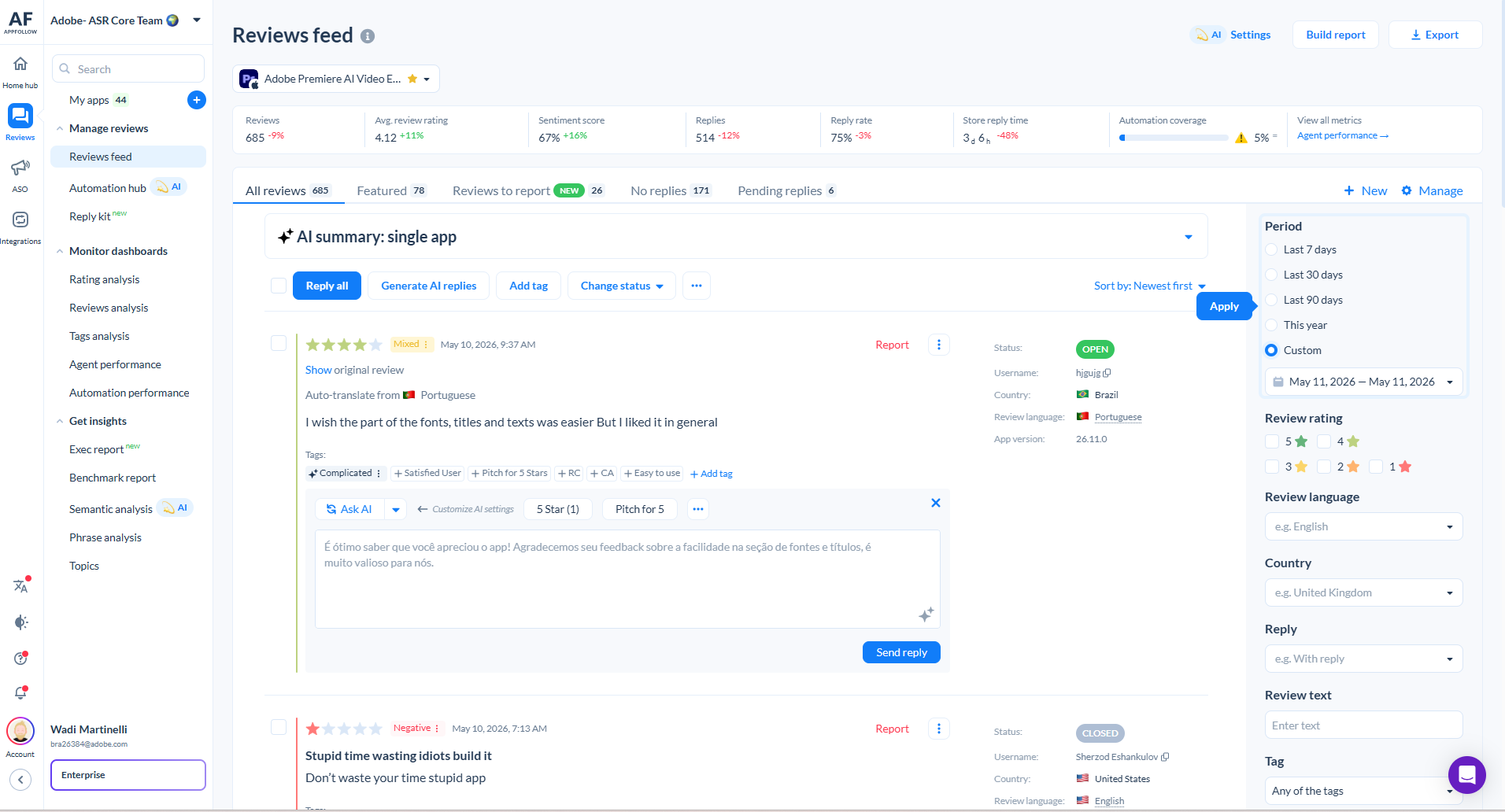
Export ① — Reviews Feed

1
Click Manage Reviews → select Reviews feed
2
Choose the correct app and store in the app selector
3
In the Period filter → select Custom
4
Enter fiscal month Start and End date from Section 1
5
Click Apply
6
Click Export (top right) → choose Excel → download
⚠ The Period filter defaults to 'Last 7 days'. Always select Custom and type exact fiscal dates.
Save as: Reviews_feed_-_[App]_-_[Platform]_-_[Month].xlsx
e.g. Reviews_feed_-_Express_-_GPlay_-_April.xlsx
AppFollow Reviews Feed

AppFollow — Manage Reviews → Reviews feed with Period filter open

Export ② — Star Rating (iOS & Google Play)

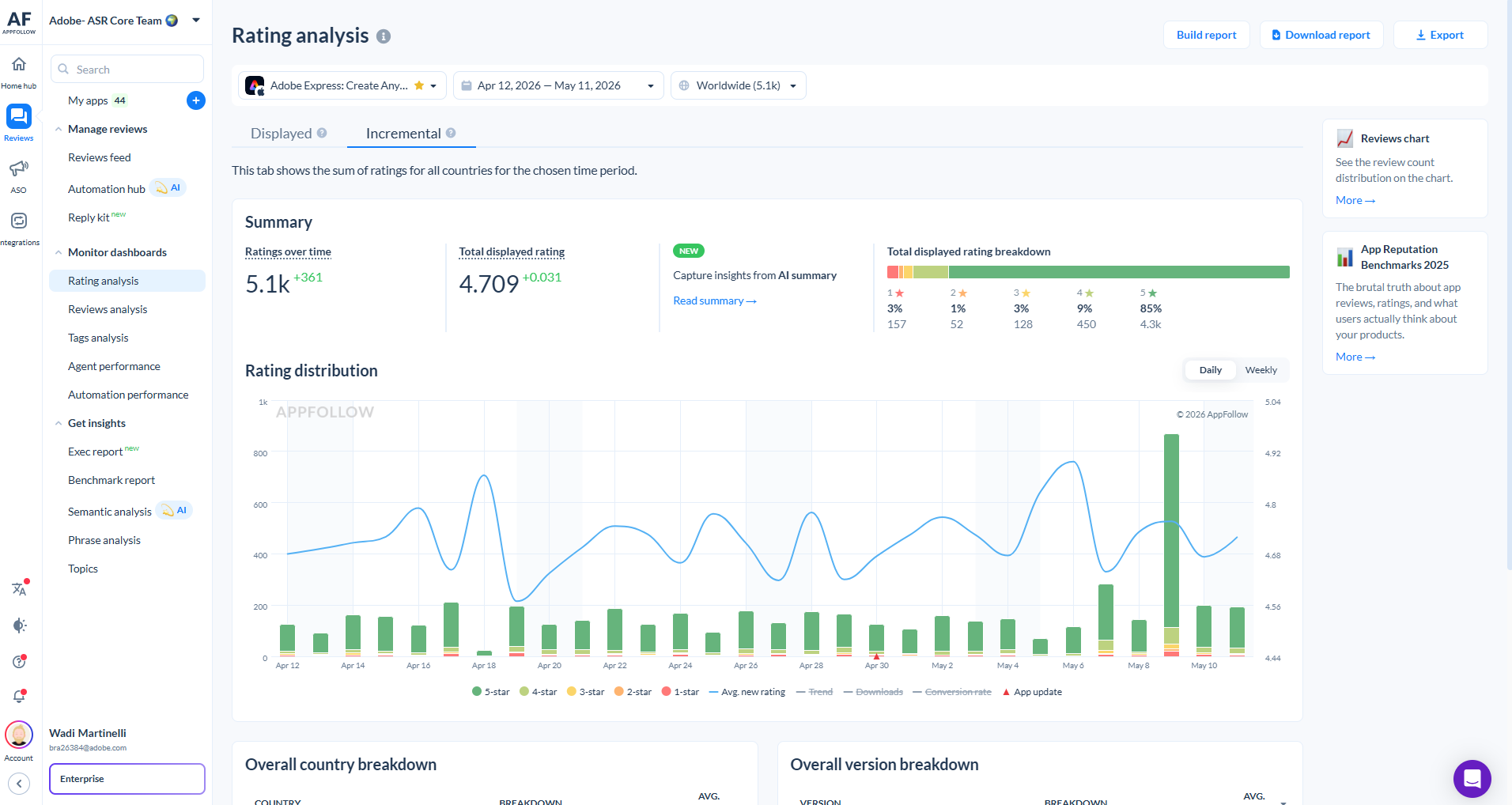
App Store (iOS) — Incremental Tab
1
Monitor Dashboards → Rating analysis
2
Select App Store version
3
Click Incremental tab (NOT Displayed)
4
Set fiscal dates → Export → Rating breakdown by date → Excel
iOS Rating Analysis
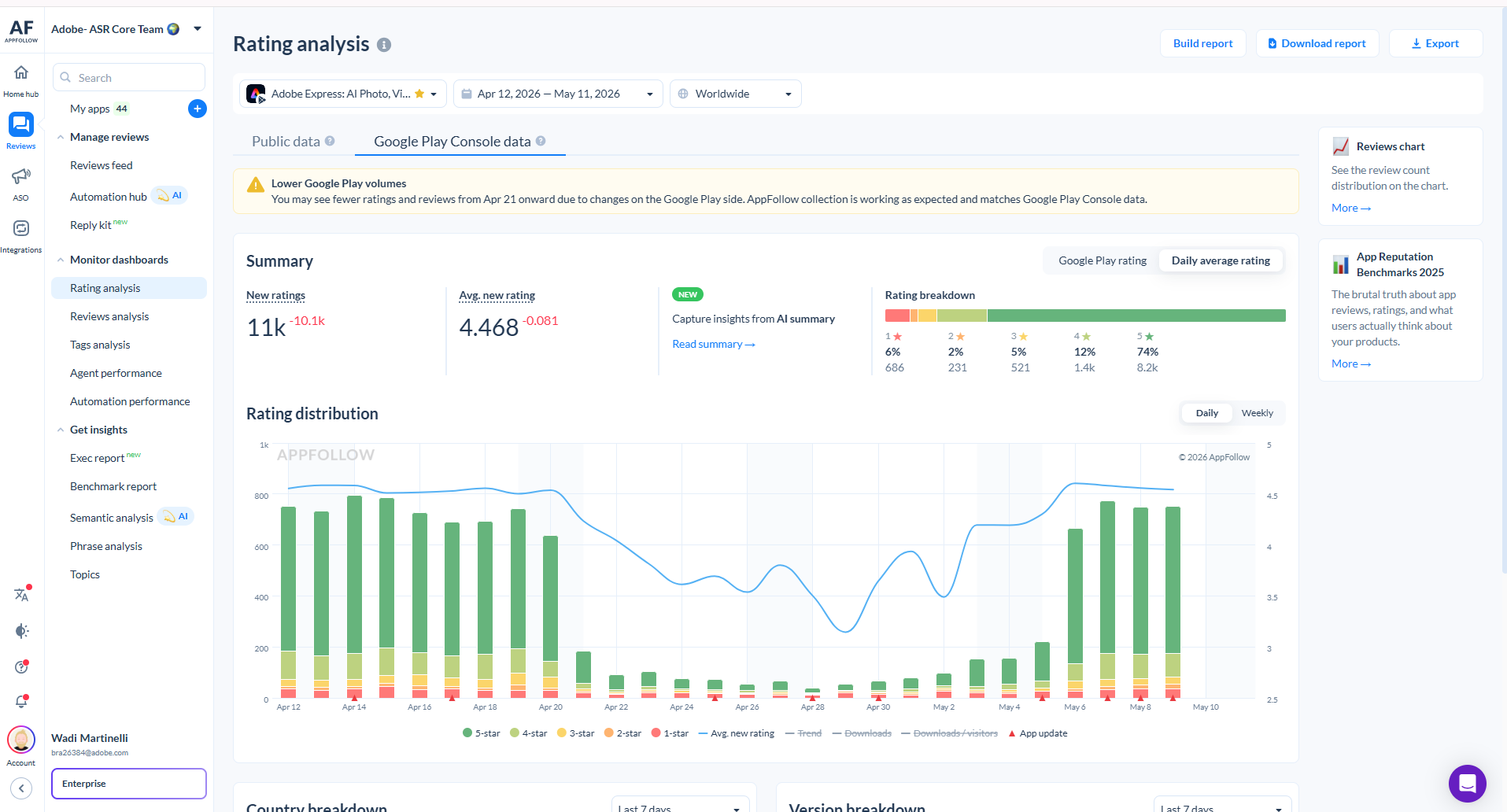
Google Play — Console Data Tab
1
Monitor Dashboards → Rating analysis
2
Select Google Play version
3
Click Google Play Console data tab (NOT Public)
4
Set fiscal dates → Export → Rating breakdown by date → Excel
GPlay Rating Analysis

Yellow banner about lower volumes is expected

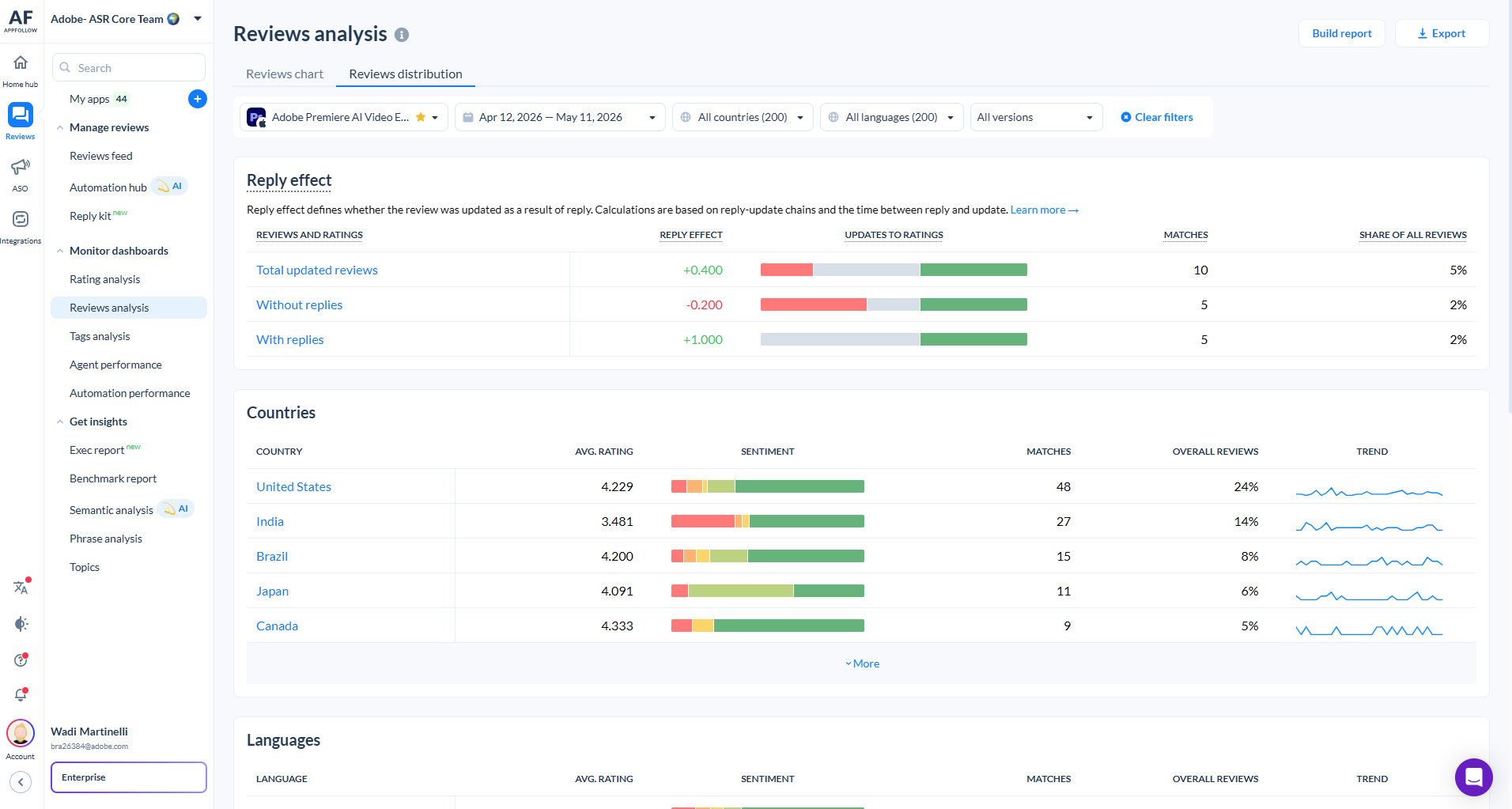
Export ③ — Reply Effect

1
Monitor Dashboards → Reviews analysis
2
Choose the correct app and store
3
Click the Reviews distribution tab (second tab)
4
Set exact fiscal month date range
5
Scroll to Reply effect section — confirm data has loaded
6
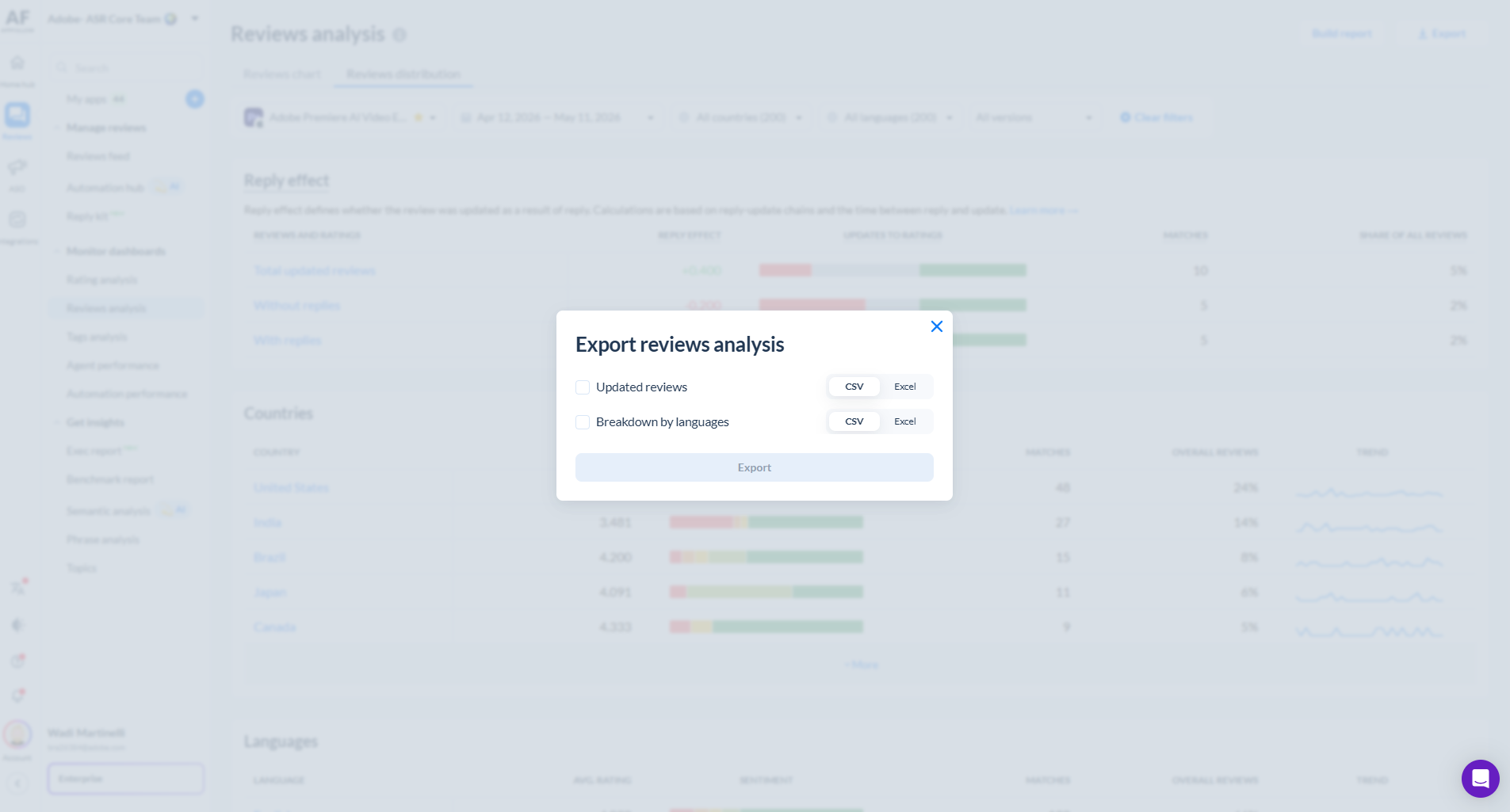
Export → check Updated reviews → Excel → Export
⚠ If n < 20 updated reviews (common for iOS): always note sample size in PPT narrative.
Save as: Reply_Effect_-_[App]_-_[Platform]_-_[Month].xlsx
Row meanings:
Total updated reviews — all user-edited reviews
With replies — subset with dev reply before edit
Without replies — subset edited without reply
Avg. rating change column → goes into QBR tab
Reviews Distribution

Reviews distribution tab — Reply effect table visible

Export Dialog

Export dialog — Updated reviews checked, Excel selected

Folder Structure for Monthly Exports

📁 Organise exports before moving to Phase 2

Monthly_Exports/
  Apr26/
    Express/
      Reviews_feed_-_Express_-_GPlay_-_April.xlsx
      Reviews_feed_-_Express_-_Apple_-_April.xlsx
      Star_Rating_-_Express_-_GPlay_-_April.xlsx
      Star_Rating_-_Express_-_Apple_-_April.xlsx
      Reply_Effect_-_Express_-_GPlay_-_April.xlsx
      Reply_Effect_-_Express_-_Apple_-_April.xlsx
    Firefly/  [same structure — 6 files]
    Premiere/  [iOS only — 3 files]
15
Files per month
(Express+Firefly)
3
Files per month
(Premiere — iOS only)
Naming Convention
Reviews Feed
Reviews_feed_-_[App]_-_[Platform]_-_[Month].xlsx
Star Rating
Star_Rating_-_[App]_-_[Platform]_-_[Month].xlsx
Reply Effect
Reply_Effect_-_[App]_-_[Platform]_-_[Month].xlsx
⚠ Consistent naming is critical — the LLM prompt references filenames to match data to platforms.
04

Section 04

Phase 2 — Extract Numbers with an LLM

Microsoft Copilot (recommended) or Google Gemini

Phase 2 — LLM Extraction Workflow

📂 Upload 3 files
Reviews Feed
Star Rating
Reply Effect
📋 Paste prompt
From Data Entry
Step 4 — fill
placeholders
🤖 LLM processes
Reads all three exports,
returns structured numbers
🔎 Spot-check
Stars sum to total?
Sentiment ≈ 100%?
Reply Effect −3 to +3?
📝 Paste to tracker
Yellow cells in
Data Entry only
(Step 2A or 2B)
What the LLM prompt extracts
  • Ratings: monthly avg star rating, per-star breakdown
  • Reviews: avg review rating, per-star counts, total
  • Replies: total replied, per-star, ASR team (excl. Automation bot)
  • Reply Effect: avg rating change with and without replies
  • Sentiment: positive / neutral / mixed / negative % and counts
📌 Lifetime Star Rating is NOT in the prompt — enter manually from AppFollow screen.
Key Reminders
  • Run Android and iOS in separate LLM sessions
  • Do Android first (Step 2A), then iOS (Step 2B)
  • If LLM can't read file → paste data as plain text instead
  • Always review output before pasting to tracker
  • Copilot is recommended (Excel natively supported)
  • Android Express: positive sentiment should be >60% (norm ~68–74%)
05

Section 05

Phase 3 — Fill in the Data Entry Sheet

The only sheet you type into

Phase 3 — Data Entry Sheet Structure

STEP 1
Fiscal Month Setup
  • Fiscal Month Label (e.g. May26)
  • Fiscal Start Date & End Date
  • 5-Week Month? YES / NO
  • Previous Month Label (for m/m delta)
STEP 2A
Android Numbers
  • Ratings → Reviews → Replies
  • Reply Effect + Sentiment
  • Paste from LLM output
STEP 2B
iOS Numbers
  • Same structure as 2A
  • Fill after Android
  • Separate LLM session
STEP 3 & 4
PPT KPI Values + LLM Prompt
  • 4 KPI boxes per platform (Android + iOS)
  • m/m delta = Current month − Previous month value
  • Step 4 = the LLM extraction prompt (copy it each month)

Cell Color Coding

🟡 Yellow

Enter data here — type or paste from LLM output. These are the only cells you touch.

🟢 Green

Auto-computed formula cells. Do NOT type here — you will break the formula.

⬜ Gray

Reference or label cells — informational only, no input needed.

🔵 Blue italic

"Where it goes" note — shows the exact tracker tab + column that receives the value.

06

Section 06

Phase 4 — Update the Tracker Tabs

AX New · Sentiment MM · QBR — one tab at a time

Phase 4 — Three Tracker Tabs to Update

Tab ① — AX New
  • Core data store — one row per fiscal month
  • Android cols B–AY (Ratings, Reviews, Replies, ASR)
  • iOS mirrors Android starting at col R through BE
  • Auto-sum formulas: cols I, P, AM, AS, AY, BE
After entry: Shift all chart data ranges forward +1 row.
Right-click chart → Edit Data → shift range (e.g. 53–58 → 54–59)
Tab ② — Sentiment MM
  • One column per fiscal month
  • Find column by fiscal month end date in Row 1
  • iOS rows 2–5 (Pos/Neut/Mix/Neg)
  • Android rows 6–9
  • Review counts: iOS row 11, Android row 12
⚠ Enter as decimals: 0.698 not 69.8%
Shift chart column ranges forward +1 column
Tab ③ — QBR
  • Reply Effect (rows 62+): add new row per month
  • Row 81 MoM diff formula: update references to newest two data rows
  • Performance (rows 89+): monthly avg rating + total ratings received
  • Cols: A=Month, B=And Avg, C=And Total, D=iOS Avg, E=iOS Total
  • N/A values → leave blank or enter 0, never text
Verify charts include the new month visually
💡 Keep Data Entry open side-by-side with the target tab. Work top-to-bottom — each yellow cell has a 'Where it goes' note showing the exact column or row.
07

Section 07

Phase 5 — Update the PPT Deck

KPI slides · Chart replacement · Narrative callouts

Phase 5 — PPT Deck Update

Slides 4 & 10 — Performance KPIs

KPI BoxSource
⭐ Star RatingLifetime (cumulative) avg star rating
📝 Review RatingAvg review rating — text reviews only
💬 Reply EffectReply Effect WITH replies (from QBR)
😊 Sentiment ScorePositive % only — NOT Positive+Mixed
m/m delta = Current − Previous. Green = positive ↑ · Red = negative ↓ (all 4 KPIs — higher is always better).

Chart Replacement

1
In tracker: click chart → Ctrl+C
2
Switch to PPT → click old chart → Delete
3
Ctrl+V to paste the updated chart
4
Resize and reposition to match original layout

Chart-to-Slide Mapping

Chart sourceDestination slide
AX New — Star Ratings & VolumeStar Ratings & Volume slide
AX New — Android Star RatingsReview Volume — Android, left
Sentiment MM — AndroidReview Volume — Android, top-right
QBR — Android Reply EffectReview Volume — Android, bottom-right
AX New / Sentiment / QBR — iOSReview Volume — iOS (same pattern)

⚠ Premiere: iOS only — no Android charts. Sizing tip: right-click → Format Object → Size for exact dimensions.

Writing Strong KPI Narratives

Narrative Structure (4 parts)
  1. Lead — state the result and direction clearly
  2. Data — specific numbers that explain WHY
  3. Context — compare to last month or 6-month range
  4. So what — what does this mean for the product?
Writing Tips
  • Use round numbers — "~2,100 reviews" reads better than "2,127"
  • Always name the cause — don't just say it dropped; say what drove it
  • Compare to context — "69.8% is consistent with 6-mo avg of ~71%"
  • Flag 5-week months — note volume is higher due to extended period
  • Flag small samples — if Reply Effect n<20, say so explicitly
💡 Use the LLM to draft narratives, then review and edit. Never paste LLM output verbatim.
Example Star Rating

"The cumulative Play Store rating dipped marginally to 4.534, down 0.012 from March's 4.546. This is within normal monthly variance and does not represent a meaningful trend reversal. The rating remains above the 4.5 threshold Google uses as a top-app quality signal. The modest softening reflects a slight uptick in 1★ ratings (682 vs 890 in March), offset by continued strong 5★ volume."

Example Sentiment Score

"Positive sentiment held at 69.8%, down slightly from March's 74% but consistent with the broader 6-month range of 68–74%. The dip reflects a modest increase in performance-related complaints. No structural sentiment shift is apparent — the score continues to be anchored by strong user satisfaction with design capabilities."

Quality Checks Before Sending

✓ Data Validation
Spot-check 3 cells per platform vs. raw export files
AX New: row label matches fiscal month (not calendar date)
Sentiment MM: column date = fiscal month end date
QBR row 81 MoM formula updated to newest two rows
Auto-sum cols I, P, AM, AS, AY, BE — none show 0 or #REF!
Sentiment % sums to 99–101% per platform
Reply Effect values are numbers, not text
✓ PPT Validation
All 4 KPI numbers updated on Android AND iOS slides
All 8 MoM delta values updated and correctly colored
Green = positive · Red = negative (all 4 KPIs)
Narratives contain this month's actual numbers
Charts replaced — axis labels show the new fiscal month
Footer dates updated · 5-week asterisk if applicable
File saved: Adobe_Express_AppStore_[Month]_Insights.pptx
✓ Sanity Checks
No metric changed >20% MoM without a known cause
Reply Effect sample size ≥ 20 (note if below)
Android Express positive sentiment >60% (norm: 68–74%)
iOS Express: ~80–165 reviews/month historically
PPT reviewed end-to-end as a client would see it
No #REF! or #DIV/0! errors in tracker (far-right AX errors OK)

Troubleshooting Common Issues

⚠ LLM numbers don't add up
Cross-check in the export file. Stars should sum to Total Reviews; sentiment to ~100%. Correct manually before pasting.
⚠ LLM can't read the file
Open export in Excel, copy data table, paste as plain text into LLM chat instead of uploading.
⚠ Android 3★/2★/1★ near-zero
Expected on Google Play — users delete/revise ratings. Frame as positive signal in PPT narrative.
⚠ Reply Effect N/A for iOS
Leave QBR cell blank or enter 0. PPT: "Reply Effect not calculable — n=0 updated reviews. Expected given low volume."
⚠ Sentiment % doesn't match AppFollow
≤2pp difference: no action. Gap >3pp: re-upload Reviews Feed with explicit column instructions.
⚠ Chart looks wrong after pasting
Right-click → Format Chart Area → Y-axis → Format Axis → manually set Min/Max to match previous month.
⚠ Can't find the right row in AX New
The date column stores Excel date serials. Find the last row with data — that's the previous month. Next empty row = current month. Check col A matches fiscal month end date.

If you encounter any other issues not listed here, consult the master tracker logic or escalate to the lead analyst.

Future Automation Roadmap

ImprovementWhat It Would DoStatus
Data Entry → tracker auto-fillValues entered in Data Entry auto-populate AX New row, Sentiment MM column, and QBR row via formulasScoped
Chart range auto-shiftCharts automatically shift their rolling 6-month range when new data is addedScoped
QBR MoM formula auto-updateRow 81 formula updates automatically when a new Reply Effect row is addedScoped
MoM sanity checkFlags any metric that changed >20% MoM directly in Data Entry before proceedingScoped
LLM prompt versioningExtraction prompt versioned centrally so all reps always use the latest versionScoped
PPT KPI auto-fillInserts KPI numbers and deltas directly into PPT text shapes (requires python-pptx)Scoped

Monthly Reporting Checklist (1/2)

Before You Start
Fiscal dates written down (start + end)
5-week month flag noted
Lifetime Star Ratings noted from AppFollow
Phase 1 — Exports
Reviews Feed — Android + iOS
Star Rating — Android (Console data) + iOS (Inc.)
Reply Effect — Android + iOS
All 6 files renamed + saved to monthly folder
Phase 2 — LLM
Android: 3 files uploaded + prompt sent
Android output reviewed (totals, sentiment ~100%)
iOS: repeated in a separate LLM session
Phase 3 — Data Entry
Step 1: Month setup (5 cells filled)
Step 2A: All Android yellow cells filled
Step 2B: All iOS yellow cells filled
Step 3: All 8 m/m delta cells entered
Phase 4 — Tracker
AX New: Android (B–AY) + iOS (R–BE) pasted
AX New: auto-sums verified, chart ranges shifted
Sentiment MM: % as decimals + chart shifted
QBR: Reply Effect + Performance rows + row 81 form.
Phase 5 + Final QA
All 8 KPIs + 8 deltas updated in PPT
All 8 narratives written (not copy-pasted)
All 7 charts replaced with current-month versions
File saved with correct fiscal month in filename

Monthly Reporting Checklist (2/2) — Detailed Tracker Validation

AX New Validation
Row label matches fiscal month (not calendar)
Android cols B–AY all populated
iOS cols R–BE all populated
Auto-sum cols I, P, AM, AS, AY, BE ≠ 0 or #REF!
All chart data ranges shifted +1 row
Charts visually show the new month
Sentiment MM Validation
Column date = fiscal month end date
iOS sentiment % rows 2–5 (as decimals)
Android sentiment % rows 6–9 (as decimals)
iOS review count row 11
Android review count row 12
Chart column ranges shifted +1 column
Sentiment % sums to 99–101% per platform
QBR Validation
Reply Effect row added after row 81
Row 81 MoM diff formula references newest two rows
Android With/Without replies values entered
iOS With/Without replies (or blank/0 if N/A)
Performance table row added (rows 89+)
Charts include the new month visually

You're ready to report.

Key things to remember:

Fiscal dates always — never calendar months
Data Entry is the only sheet you type into
LLM output must be spot-checked before pasting to the tracker
Narratives explain why the metric changed, not just what it is
When in doubt, cross-check the raw AppFollow export directly

Presented by

×